This is a guide for troubleshooting the Dell laptop purchased from Neuroelectrics.
Neuroelectrics only distributes this laptop. If any furhter assistance is required please contact Dell.
1 - The laptop does not turn on
Make sure the laptop is properly plugged into a working power outlet.
Check that the power cable is securely connected to the laptop and the wall.
If possible, try using a different power cable.
Press and hold the power button for 10 seconds, then try turning it on again.
2 - The laptop shuts down unexpectedly
Ensure the battery is charged and the power cable is securely connected.
Restart the laptop and check if there are any Windows updates pending.
Install all available updates.
3 - The laptop is slow or frozen
Close any applications or programs you are not using.
If the laptop is completely frozen, press and hold the power button for 10 seconds to force a shutdown. Then turn it back on.
Check for and install any pending Windows updates.
4 - The laptop overheats
Check that the ventilation grills on the laptop are not blocked.
If the laptop feels too hot, shut it down and let it rest for a few minutes before restarting.
5 - The screen is black or unresponsive
Check if the screen brightness is too low. Use the F6 and F7 keys to adjust the brightness.
Try connecting the laptop to an external monitor to see if the internal screen is the issue.
If the external monitor works, contact Dell Support for repair or replacement of the screen.
6 - The keyboard or mouse do not respond
Ensure that the keyboard or mouse are properly connected (if they are external).
Check for any lock keys that may have been activated accidentally.
Restart the laptop.
Try using a different keyboard or mouse to rule out hardware problems.
7 - Wi-Fi connection problems
Make sure Wi-Fi is enabled (click the network icon at the bottom right of the screen).
Check that your Wi-Fi router is working by testing with another device.
Turn Wi-Fi off and on again: click the Wi-Fi icon, wait a few seconds, and click it again.
On ? Off
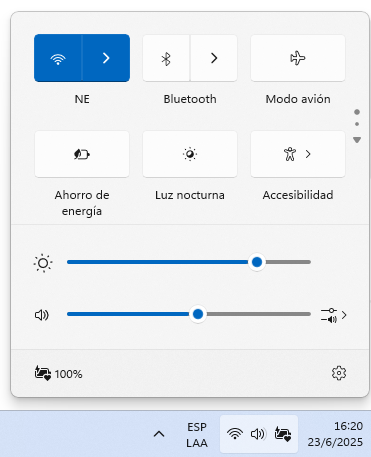
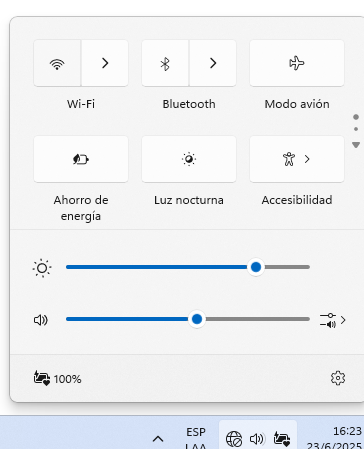
If it does not reconnect automatically, click the '>' next to the Wi-Fi icon, select your network, click 'Connect' and enter the password.
If the issue persists, restart both the router and the laptop.
8 - Sound does not work
Ensure that the volume is turned on and is not set to the minimum.
Make sure speakers or headphones are properly connected and selected as the output device.
Restart the laptop and try again.
9 - The laptop does not recognize a USB device
Make sure the USB device is properly connected.
Try plugging the device into a different USB port.
If it still doesn’t work, try using the device on another computer to check if it functions correctly.
Still Having Issues? Contact Dell Support
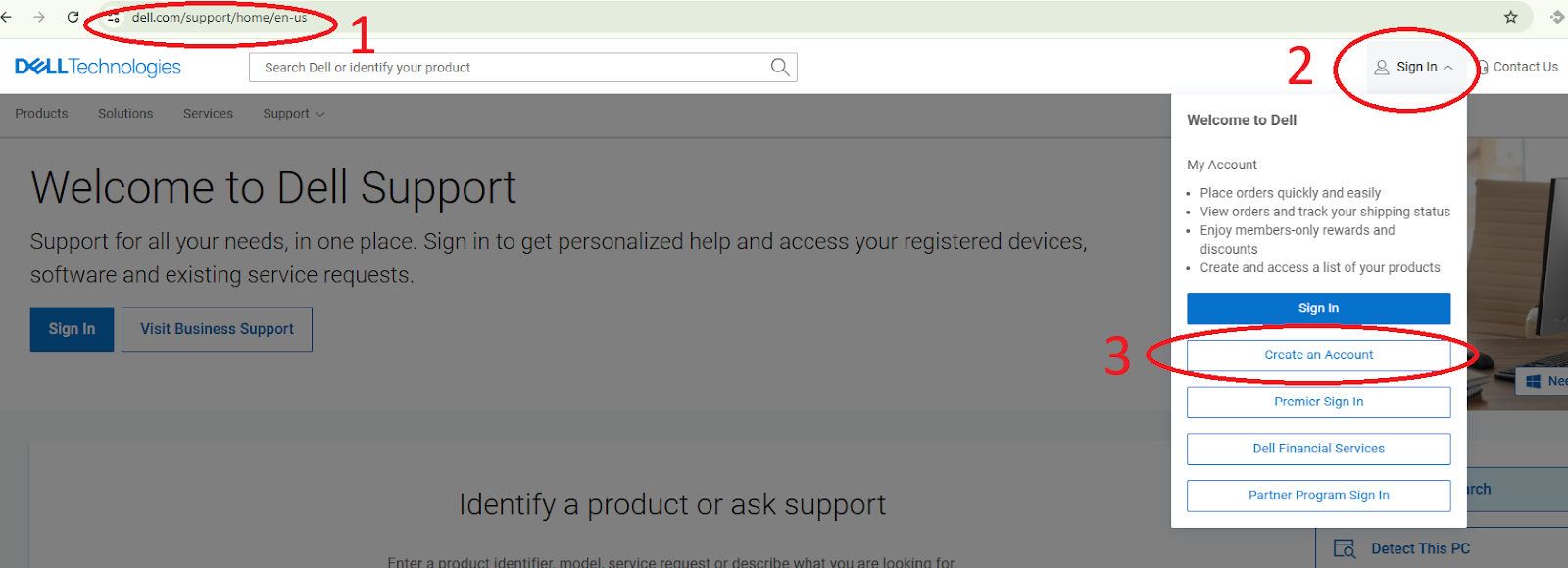
Go to www.dell.com/support.
If you do not have an account, click 'Sign In', then click 'Create Account'.
Fill out the form to register.
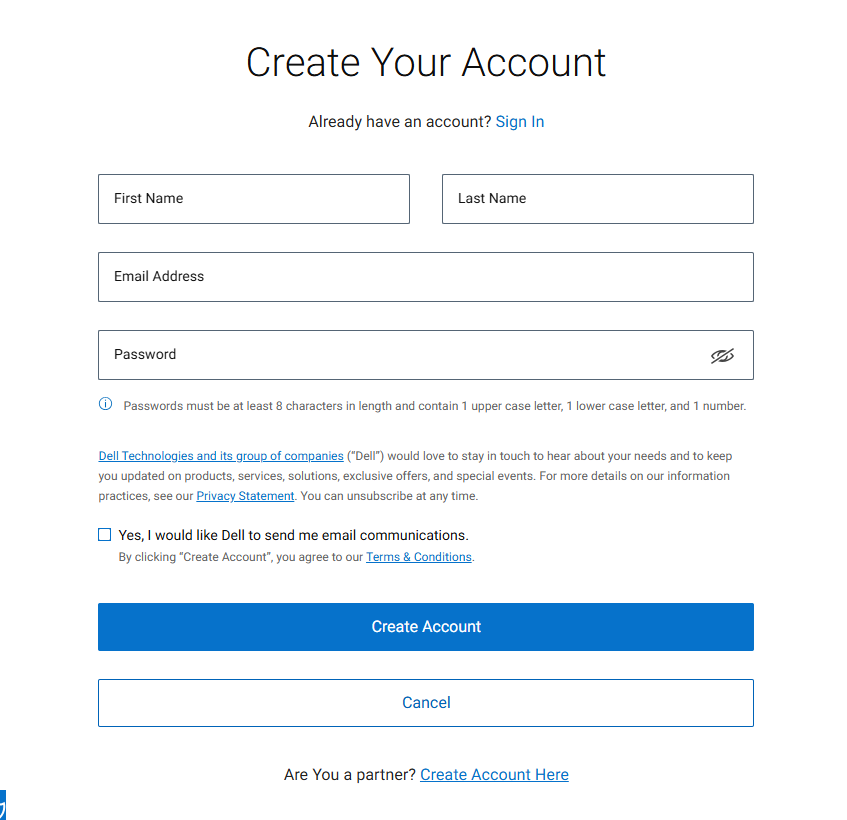
You will receive an email with a verification code.
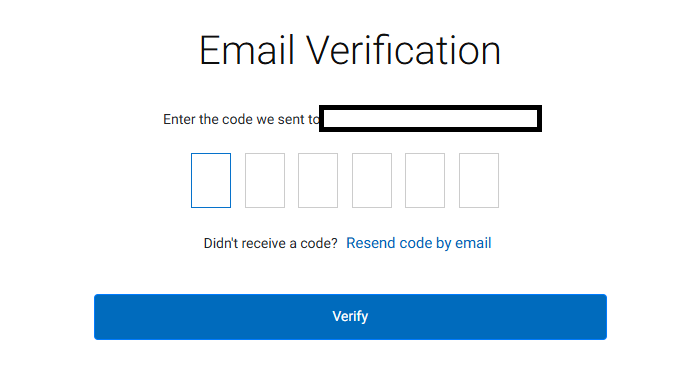
You can skip the phone number step if asked.
Close any pop-up windows if they appear.
Click the 'Contact Support' tab on the right side of the screen.
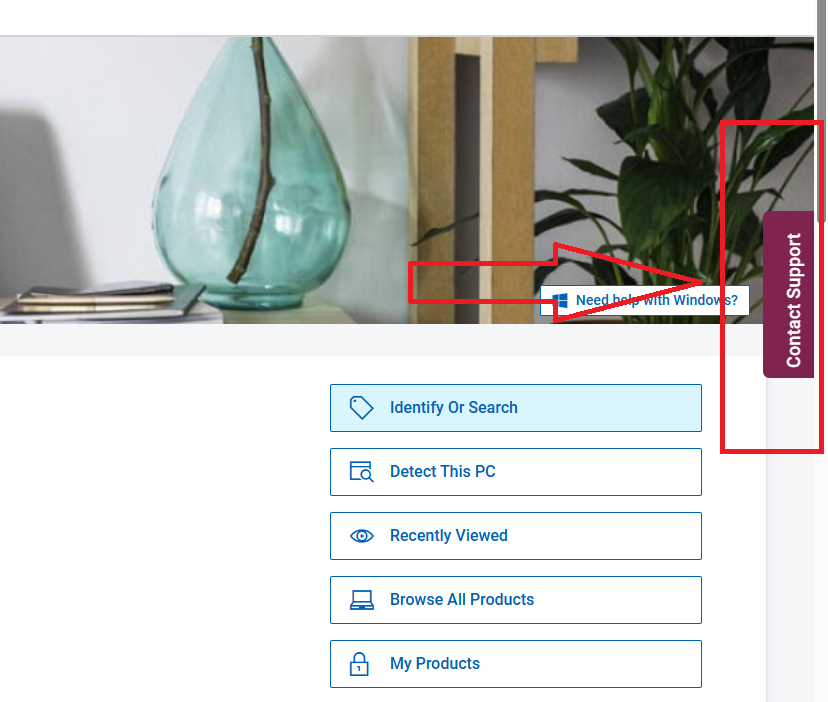
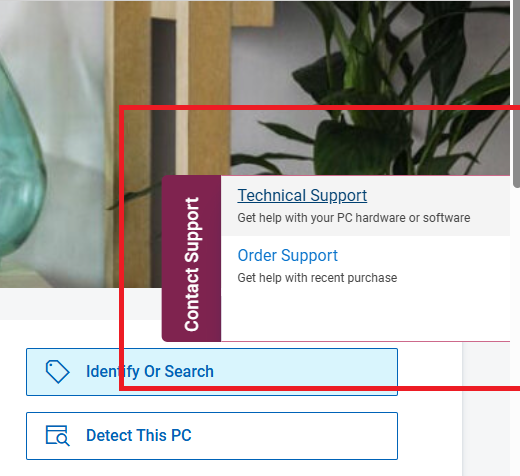
Click on 'Technical Support'.
Enter the Service Tag or Serial Number found on the bottom of your laptop.
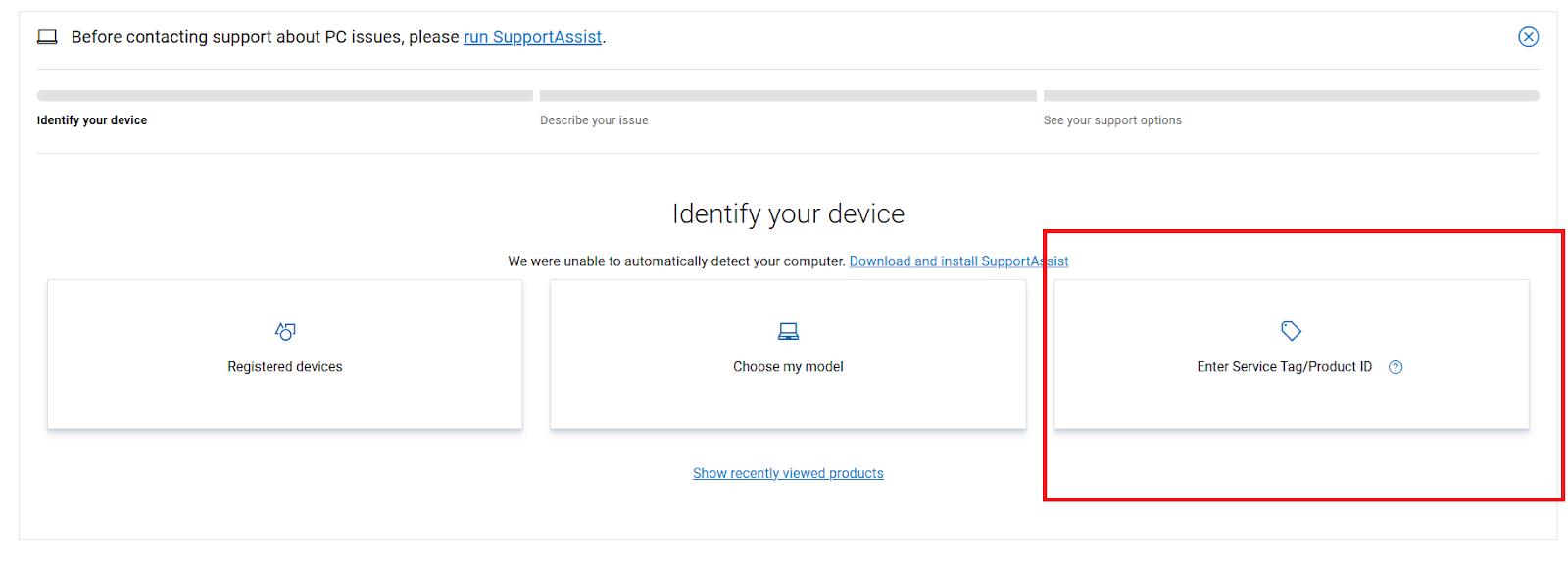
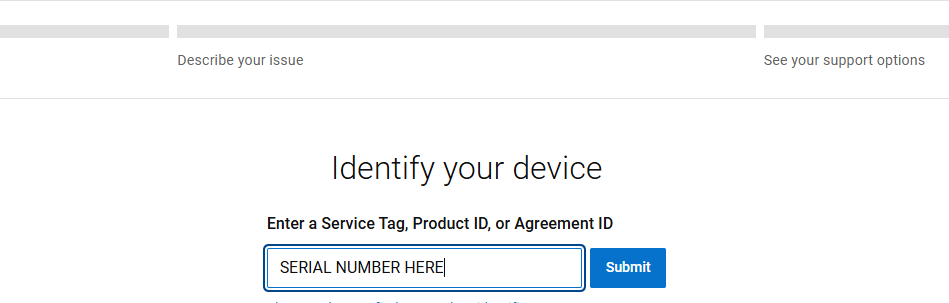
Click 'Submit'.
Describe your issue and list any steps you have already tried.
Follow the support assistant's instructions to complete your support request.
Was this article helpful?
That’s Great!
Thank you for your feedback
Sorry! We couldn't be helpful
Thank you for your feedback
Feedback sent
We appreciate your effort and will try to fix the article