While our systems are designed to provide stable and reliable performance, it is important to note that, in some environments, occasional connectivity issues may still occur.
We would like to reassure you that we are actively and continuously investigating Wi-Fi connectivity behavior to better understand all potential root causes and improve system robustness.
Wireless communication, by nature, is more sensitive to environmental conditions than wired alternatives. Factors such as network congestion, interference from other devices (Bluetooth, USB 3.0, routers), operating system permissions, and physical surroundings can all impact performance. During high-precision neurophysiological recordings or stimulation sessions, even minor instabilities can become more noticeable.
That said, improving reliability and user experience is a top priority for our team. We are continuously refining both our hardware and software, implementing mitigations, and incorporating feedback from real-world use cases across research and clinical environments.
In parallel, we are committed to providing clear guidance and practical recommendations to help you achieve the most stable setup possible in your specific environment.
Troubleshooting
1. Device does not appear on WiFi List
Enable Location on Windows
Some Windows settings may interfere with network visibility. To resolve this:
Go to Windows Settings → Privacy & Security → Location.
Enable “Let desktop apps access your location.”
If it is already enabled, toggle it off and back on.
Enable Location on MAC
1. Go to Apple menu -> System Settings -> Privacy & Security -> Location Services.
2. Find NIC in the list, and turn on the toggle next to it to grant it access to your location. If it is already enabled, toggle it off and back on.
You may need to enter your administrator password to make changes
Disable Automatic Wi-Fi Connection
Sometimes, Windows automatically prioritizes other Wi-Fi networks, which may prevent your device from connecting properly.
Method A:
Close NIC and switch the device off and on again.
Ensure “Connect automatically” is disabled for your internet-providing Wi-Fi network.
Reopen NIC and connect your device using the Windows Wi-Fi interface.
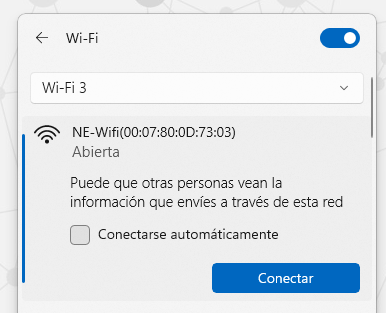
Once connected, return to NIC and click “USE THIS DEVICE.”
Method B:
Open your PC’s Wi-Fi settings and locate the NECBOX network.
Select “Forget this network”, search for a duplicate "NE-Wfi(xx:xx:xx:xx...) 2" and forget it too.
Reconnect to NECBOX
Open NIC settings and re-establish the Wi-Fi connection.
Confirm NIC2 Software Version
Make sure you have the latest version of NIC2 installed on your PC for optimal performance.
2. Unable to connect / Disconnections
Adjust Wireless Adapter Power Settings
Windows’ energy-saving features may slow down communication —> Adjust your settings:
Press Windows + X → Power Options → Additional Power Settings.
Under your selected plan, choose Change plan settings → Change advanced power settings.
Navigate to Wireless Adapter Settings → Power Saving Mode.
Set both On battery and Plugged in to Maximum Performance.
Optimize Device Position and Battery
Place the device within 1–2 meters of your PC to maintain a stable connection.
Always fully charge your device before starting a session.
Disable Unnecessary Features
If not using Markers via LSL, disable the LSL server and synchronization options for better performance.
Kill Local Interference (USB ports, Bluetooth):
Disconnect all unnecesary USB cables as they introduce noise. If that is not possible, switch cables to USB 2.0 (white) ports and avoid using USB 3.0 (blue, orange, purple) or newer ones, or USB-C ports.
Turn off all Bluetooth devices and the Bluetooth of the laptop.
Enhance hardware:
Use a high quality external USB WiFi adapter for 2.4GHz
3. Advanced Troubleshooting Options
Use Debug Mode
If problems persist, generating debug logs can help our support team investigate.
Download doDebug2.txt and place it in Documents/NIC.
Enable file extensions (File Explorer Options → View → Untick “Hide extensions for known file types”).
Rename the file from .txt to .bat.
Run the file (ensure NIC2 is closed).
NIC2 will open in Debug Mode, creating a folder named Debug in Documents/NIC.
Reproduce the issue, then send the Debug folder to our support team.
4. Changing the Wi-Fi Channel
Interference from nearby devices can affect performance. Switching to a clearer Wi-Fi channel may help.
Request the WifiChannel.zip program from Support.
Disconnect your computer from Ethernet.
Open NetSpot (https://www.netspotapp.com/download-win.html) / Acrylic Wifi Analyzer (https://www.acrylicwifi.com/en/wifi-analyzer/) to see how much interference (amount of devices and strength of signal) is in Channel 1, 6 and 11.
Connect your PC to the Enobio/Starstim NE-WiFi network (device ON, not running a protocol, NIC closed).
Launch NEWiFiUDPClient.exe.
Use the following commands to set a channel:
set_wifi_channel 1
set_wifi_channel 6
set_wifi_channel 11
Confirm the current channel with the command:
get_wifi_channel
By following these steps, most connectivity and communication issues can be quickly resolved. Whether it’s adjusting Windows settings, optimizing your Wi-Fi connection, or generating debug logs for deeper troubleshooting, these solutions ensure smooth operation of your device and NIC2 software.
If issues persist, please contact our Support Team with the debug logs for further assistance.
Was this article helpful?
That’s Great!
Thank you for your feedback
Sorry! We couldn't be helpful
Thank you for your feedback
Feedback sent
We appreciate your effort and will try to fix the article