Aarticle covers
This article applies to EEG recordings with Enobio only. It explains the difference between the Impedance Check (IC) and the Quality Indicator (QI), when the Impe
Description
This article describes the method to synchronize Neurobehavioral Systems' Presentation software with NIC using Lab Streaming Layer (LSL), so that event markers sent from Presentation are received and recorded by NIC during a session.
Materials / Devices / Software
NIC (with a protocol created)
Presentation software (Neurobehavioral Systems)
Ethernet cable (only required if NIC and Presentation run on separate computers)
Pre-requisites
NIC and Presentation installed, either on the same computer or on two computers connected via Ethernet
A protocol already created in NIC
Step-by-step guide
1. Enable the LSL stream in Presentation
In Presentation, go to Settings > General and enable 'Send event data to LSL', found in the Lab Streaming Layer box.
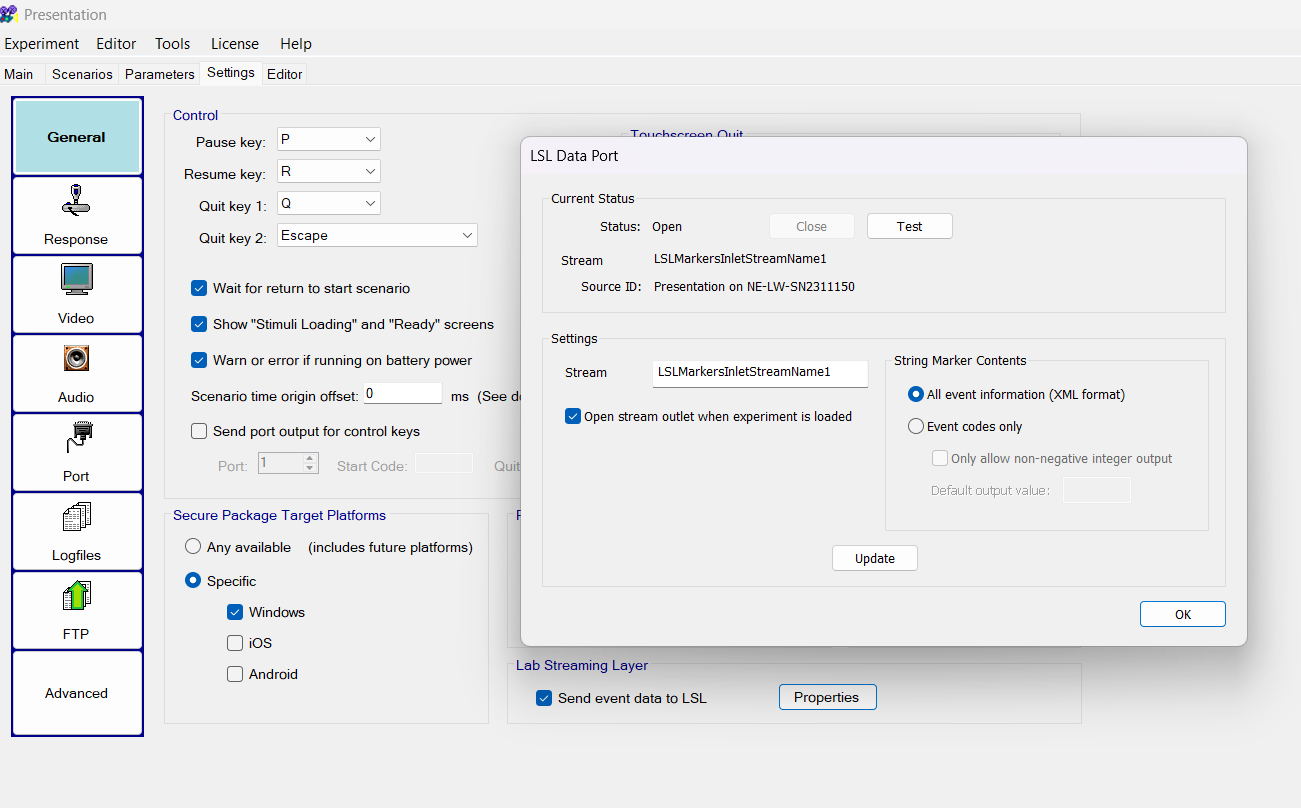
This stream name is editable — set it to match the NIC software inlet you are using so the two applications can synchronize.
Enable triggers from Presentation in the same dialog.
The example in this article uses the stream name 'LSLMarkersInletStreamName1'.
2. Confirm NIC and Presentation can reach each other
Run NIC and Presentation on the same computer whenever possible.
If they run on two separate computers, connect the computers with an Ethernet cable so the LSL connection can be established.
3. Load the protocol and open NIC Settings
In NIC, load the protocol you created, then open Settings from the protocol screen.
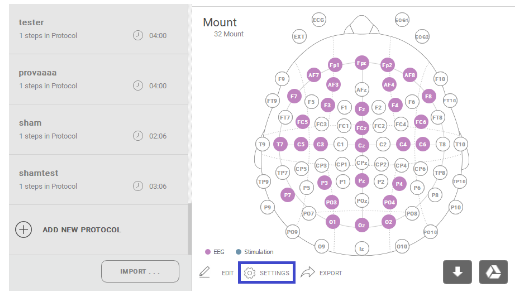
4. Match the LSL stream name in NIC
In NIC Settings, under Markers and Lab Streaming Layer 1, enter the same stream name you set in Presentation.
In this example, that name is 'LSLMarkersInletStreamName1' — it must be identical in both applications.
Only one Markers Lab Streaming Layer channel needs to be enabled for a single inlet stream.
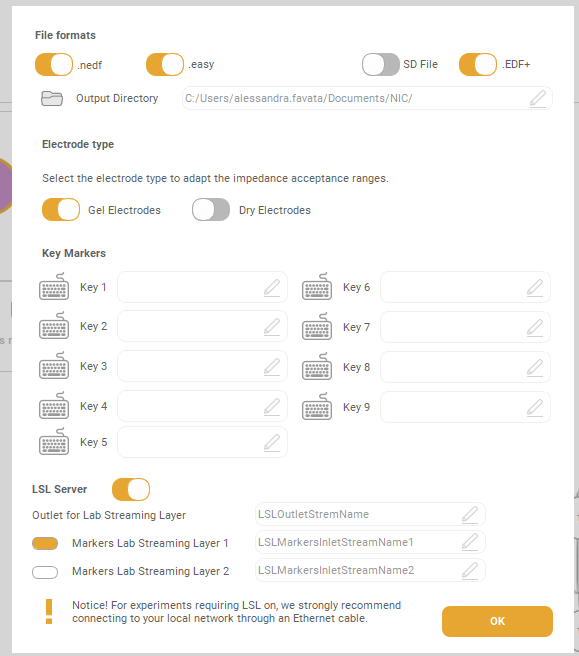
5. Confirm the connection
Check that the LSL indicator LED turns orange in NIC.
An orange LED confirms the connection between Presentation and NIC is successful.
Once connected, markers sent from Presentation will appear in NIC.
Was this article helpful?
That’s Great!
Thank you for your feedback
Sorry! We couldn't be helpful
Thank you for your feedback
Feedback sent
We appreciate your effort and will try to fix the article