What this article covers
This article applies to EEG recordings with Enobio only. It explains the difference between the Impedance Check (IC) and the Quality Indicator (QI), when the Impedance Check button is available, how to run an Impedance Check and read the results, and what to do when the button is grayed out.
Impedance Check vs Quality Indicator
These are two different tools for judging overall signal quality. The Impedance Check is an on-demand measurement of the electrode–skin contact impedance, reported per channel in kΩ and shown as a color on each channel circle. You trigger it by pressing the CHECK IMPEDANCE button -only if your Enobio´s firmware is 3039 or later-; it gives you a single snapshot at that moment.
The Quality Indicator runs continuously while you record. It estimates overall signal quality from parameters such as offset, drift, line noise and main noise, combines them into a quality value, and color-codes each channel in real time. Per the Instructions for Use, the Quality Indicator is intended as guidance and should not be read too strictly — visual inspection of the EEG signal is equally important.
When is the Impedance Check available?
Impedance Check availability depends on your device firmware. The software requirement is NIC 2.1.4.1 or later.
Two scenarios are possible.
Scenario A — Enobio´s firmware is version 3039 or later
The CHECK IMPEDANCE button is active and you can run an impedance check (see next section).
Scenario B — Enobio´s firmware is version 3038 or previous
The CHECK IMPEDANCE button appears grayed out and impedance check is disabled. In this case:
- You can still record using the Quality Indicator (see “If the button is greyed out” below).
- To enable Impedance Check, contact support@neuroelectrics.com to arrange a firmware update.
Scenario A: The device has firmware version 3039 or later:
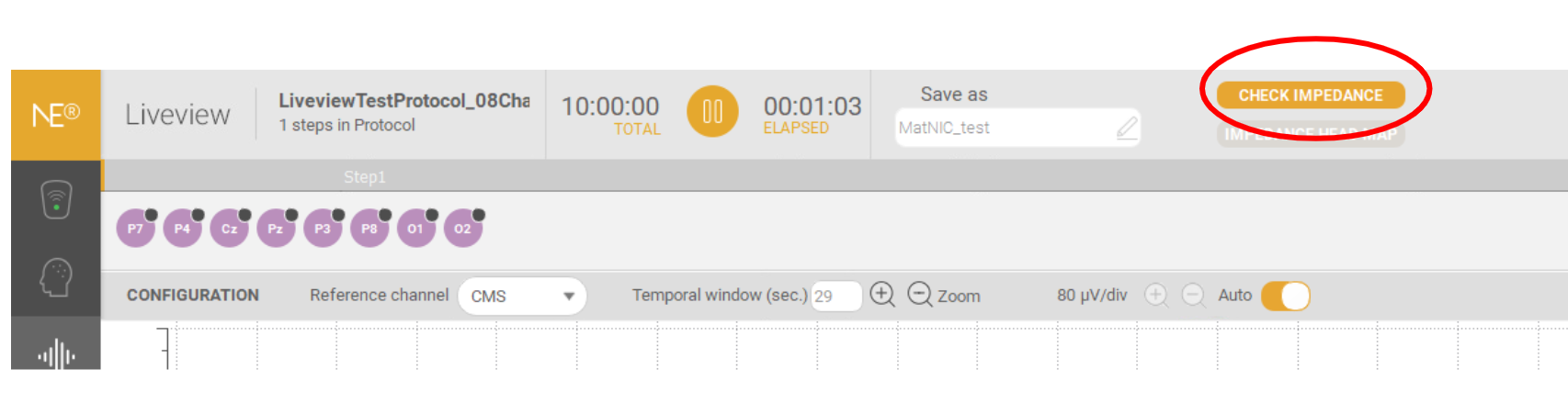
You will be able to perform an impedance check pressing the impedance check button per the image
In this case the impedance check functionality should be:
- Once the protocol has been loaded and the Live View panel has opened, the quality indicators appear in grey.
-
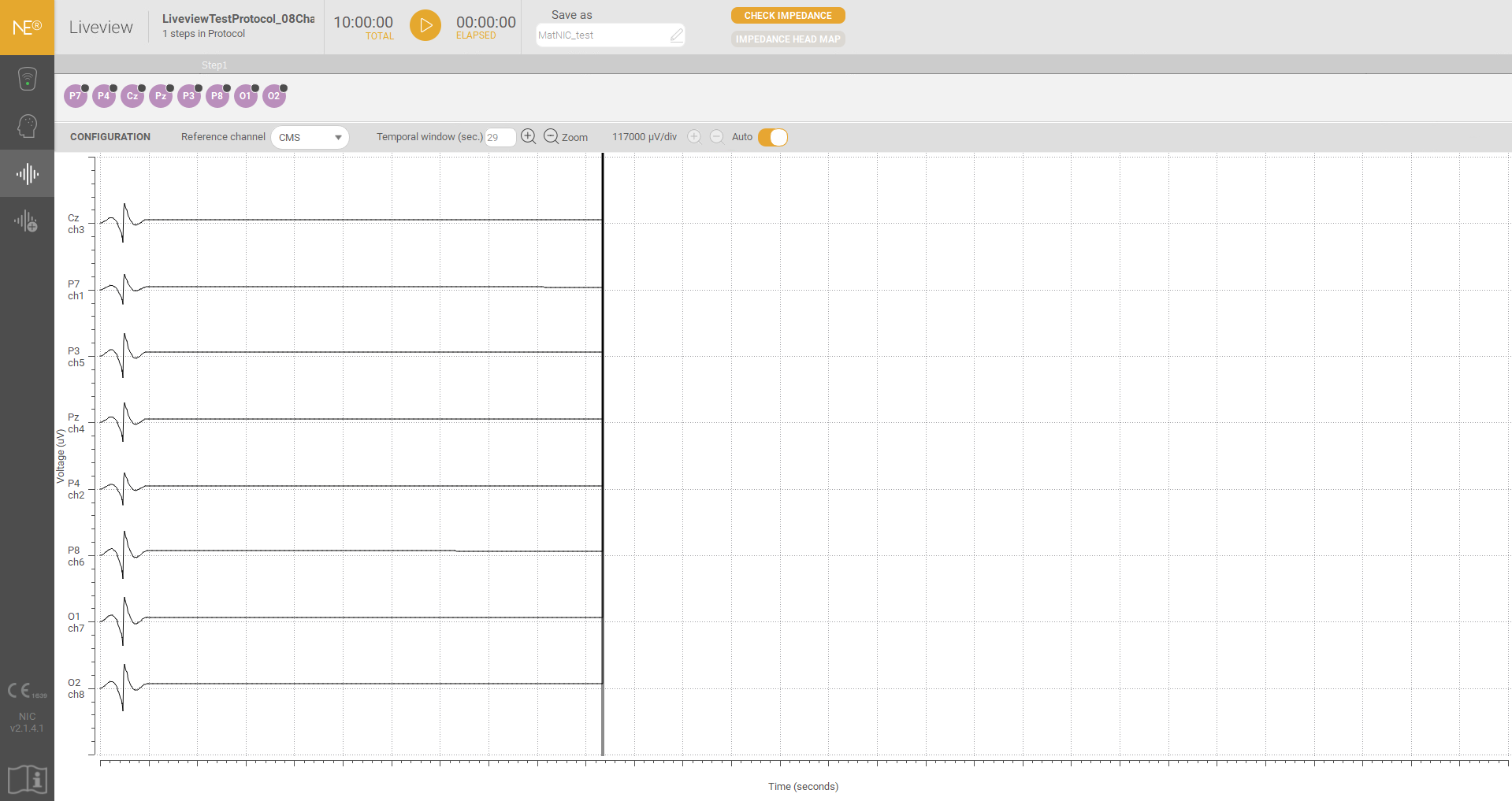
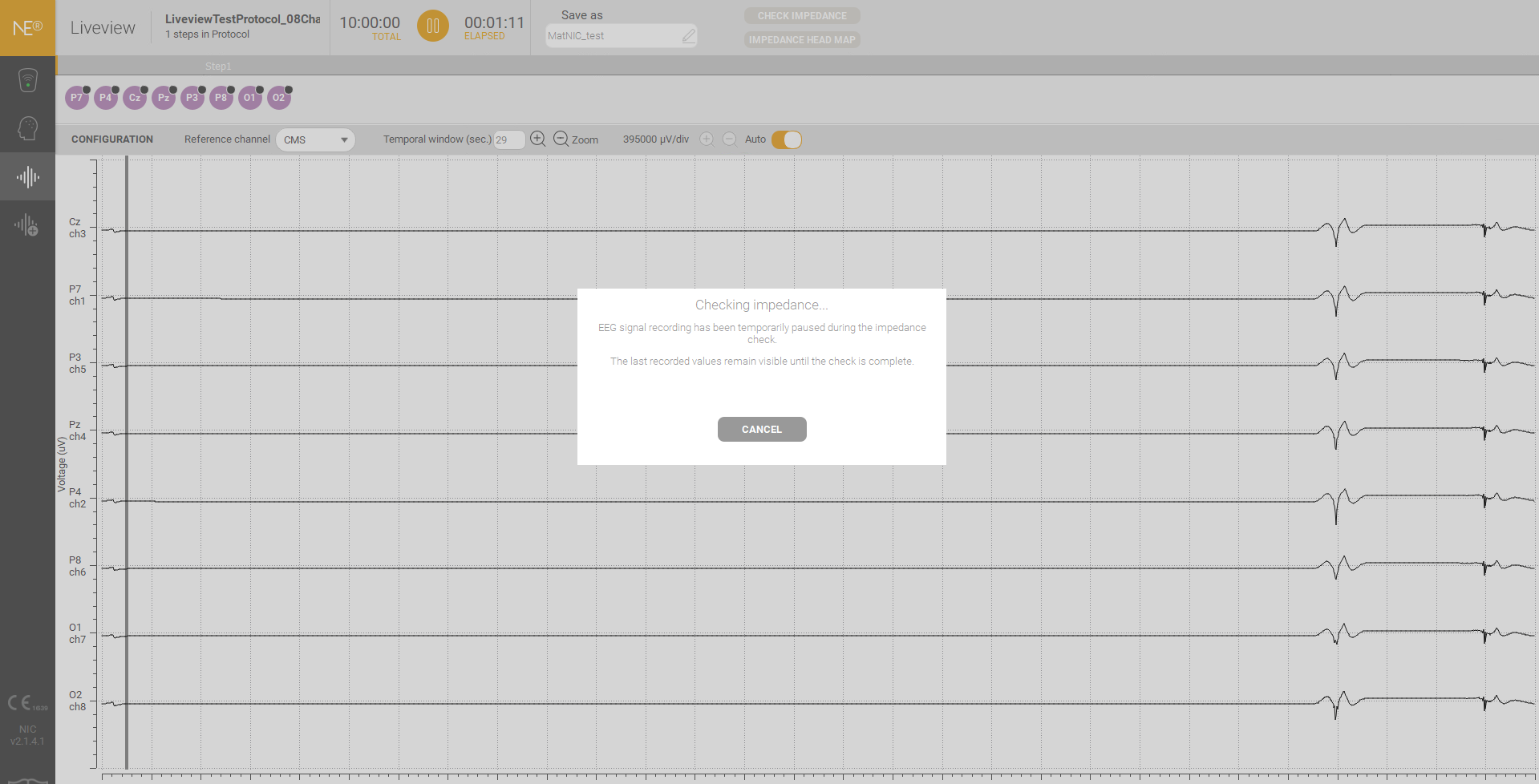
- Once you click the Impedance Check button, the impedance measurement will start.
- Once the impedance check is completed, the Channel Circle will update to reflect the measured impedance values, and their colors will change accordingly.
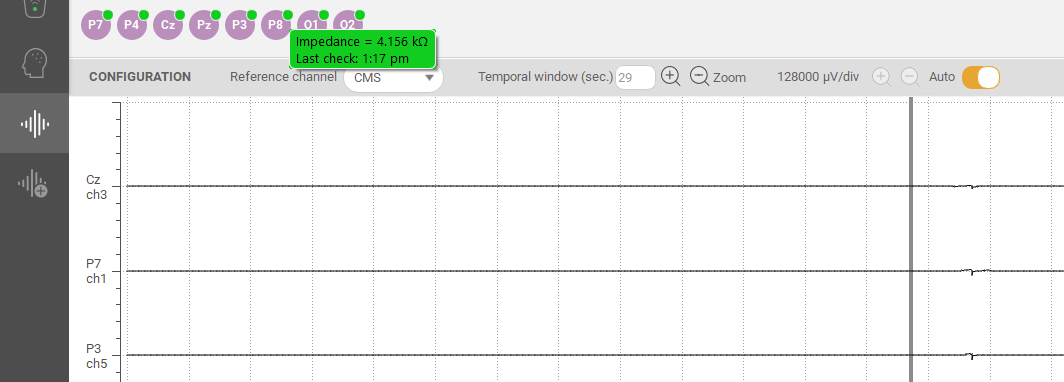
Impedance results are color-coded. The ranges of acceptability depend on the electrode type that can be defined in the protocol settings.
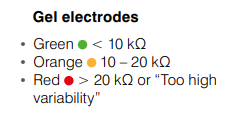
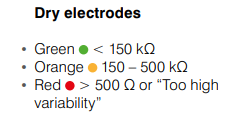
At this point, if no additional impedance check is performed, the indicators will turn grey again after approximately five minutes. This is the expected behavior in the latest version of NIC.
During these five minutes, the impedance values are not updated automatically. To refresh the values, the Impedance Check button needs to be pressed again.
The EEG Signals will not be recorded while the Impedance is being checked.
Scenario B: the device has firmware 3038 or previous:
In the Live View screen, the “Check Impedance” button will appear grey, meaning that the impedance check is disabled.

Even in this case, you still have the option to work using the quality indicator. The Quality Indicator is intended to serve as a reference and should not be interpreted too strictly; visual inspection of the EEG signal is equally important. If the signal looks good and the quality indicator is orange/green, you may proceed with the session.
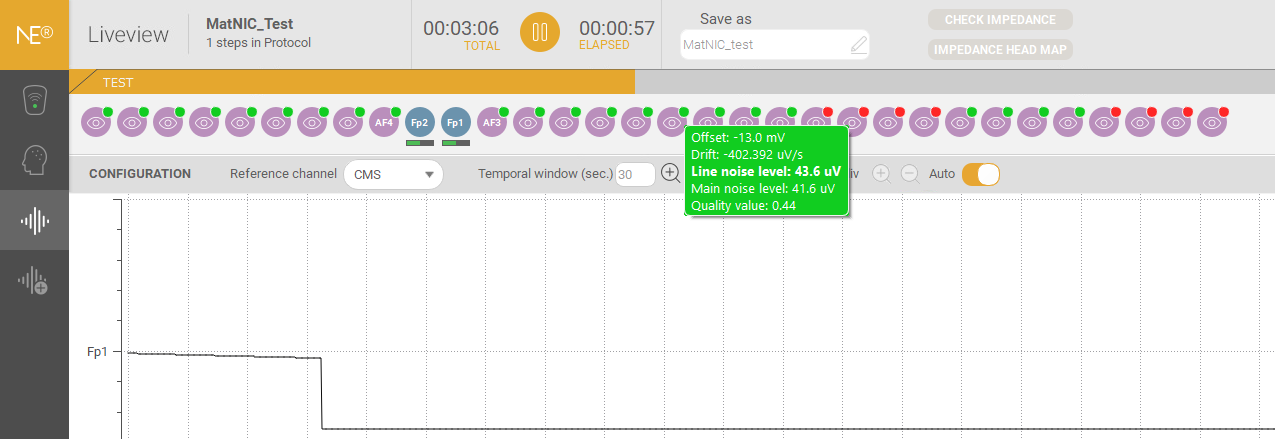
- If the signal looks clean and the Quality Indicator is green or orange, you may proceed with the session.
- If the indicator turns red, there is no need to stop immediately — inspect the signal, and if needed improve the electrode contact (re-apply gel, reposition the electrode, clean the skin or move hair aside).
The Quality Indicator reflects parameters such as offset (often a sign of poor electrode or reference contact), drift (a steady change in potential, e.g. gel not yet stable), and line/main noise (electrical interference).
The advice is to contact support@neuroelectrics.com so the device can be sent in for a firmware update.
Quality indicator with firmware 3039
Quality indicator information is available via LSL stream. When you stream data over LSL (Lab Streaming Layer), you can still obtain a Quality Indicator, so signal-quality information is available in an LSL-based setup.Quality information won’t be displayed on the liveview, but via LSL Outlet.
When using the LSL functionality, Impedance information is displayed on the liveview and saved in a .txt format in the default folder user/documents/NIC.
Was this article helpful?
That’s Great!
Thank you for your feedback
Sorry! We couldn't be helpful
Thank you for your feedback
Feedback sent
We appreciate your effort and will try to fix the article