Installation of LSL Package in E-Prime
To enable LSL (Lab Streaming Layer) functionality in E-Prime, you first need to install the LSL Package, which acts as an extension for sending LSL markers directly from E-Prime.
You can download the required files from the bottom of this article.
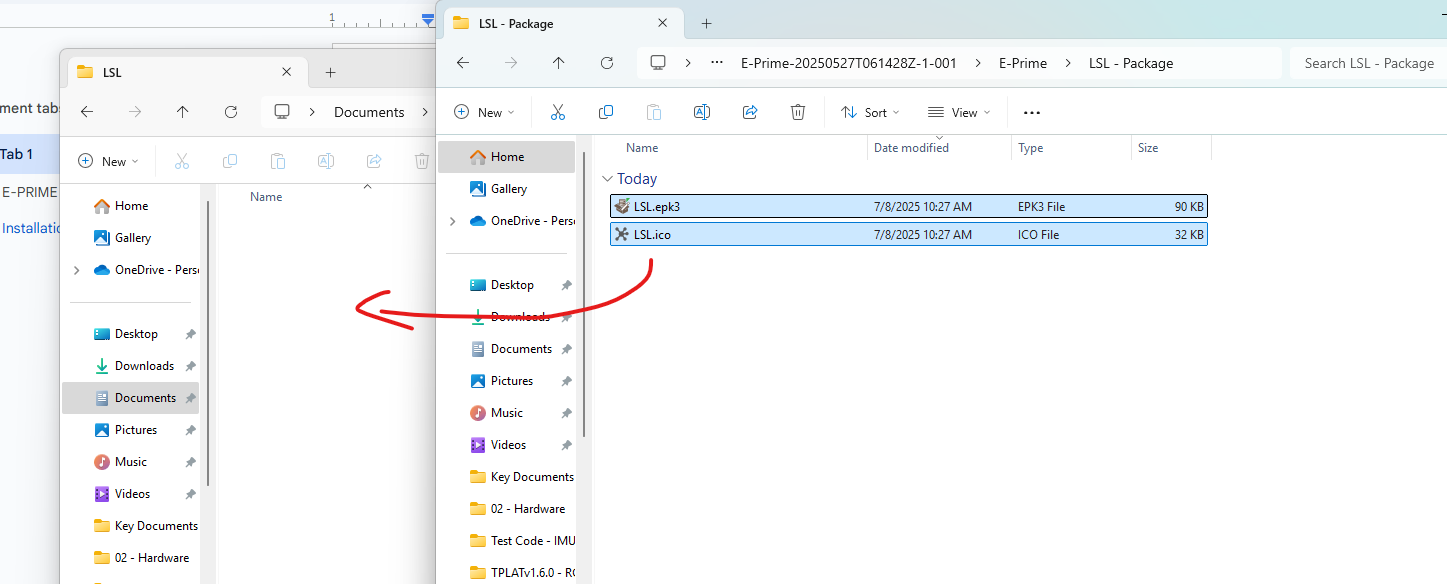
Once downloaded, extract the files and follow these steps to install the package:
Navigate to the following directory on your computer:
C:\Users\USER_NAME\Documents\My Experiments\3.0\PackagesCopy the LSL folder there.
After completing these steps, the LSL functionality will be available for use in your E-Prime experiments.
2. Preparation of E-Prime
Now that the LSL Package is installed, the next step is to enable it within your E-Prime experiment:
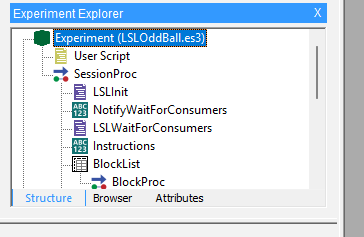
Open your E-Prime project (.es3 file).
In the Experiment Explorer view, double-click on the top-level item (usually named same as your experiment).
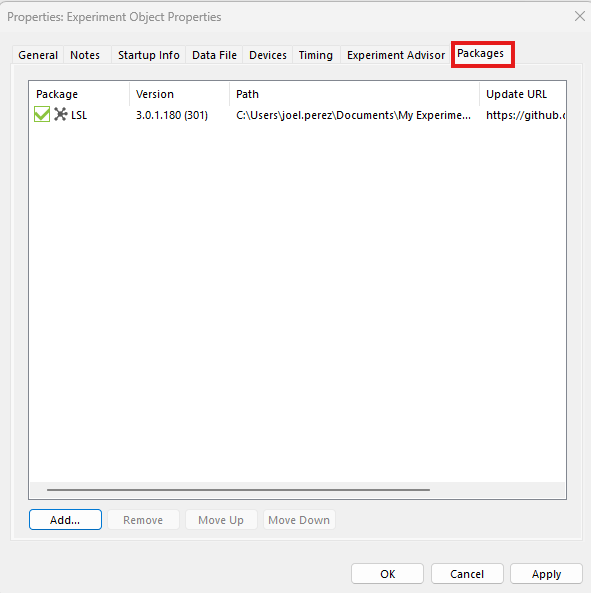
A Properties Pop-up window will appear. Navigate to the Packages tab.
Press Add and select the LSL package in the Pop-up window.
Locate the LSL package and check the box to enable it.
Click Apply and OK.
To enable communication between E-Prime and NIC2 via LSL markers, you need to include specific script routines in your E-Prime project. These scripts handle the connection and labeling process.
You can find examples of these scripts in the sample projects provided with the LSL package, such as LSLOddBall.es3. You can find it at the bottom of this page. Copy the LSL Samples folder in My Experiments/Version/Samples
The scripts you need to add to your experiment are:
LSLinit
NotifyWaitForConsumers
LSLWaitForConsumers
LSLUninit
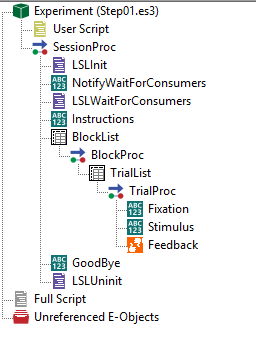
It is important that the scripts are located in the same position as the example.
The final step is to copy the code from the User Script section of the E-Prime example (e.g., LSLOddBall.es3) and paste it into your own project. You can also copy it from the "LSL_E-prime_User Script.txt" at the bottom of this page.
To do this:
Open the example project (e.g., LSLOddBall.es3).
Go to the User Script section.
Copy all the code contained there.
Open your own E-Prime project.
Navigate to the User Script section and paste the copied code.
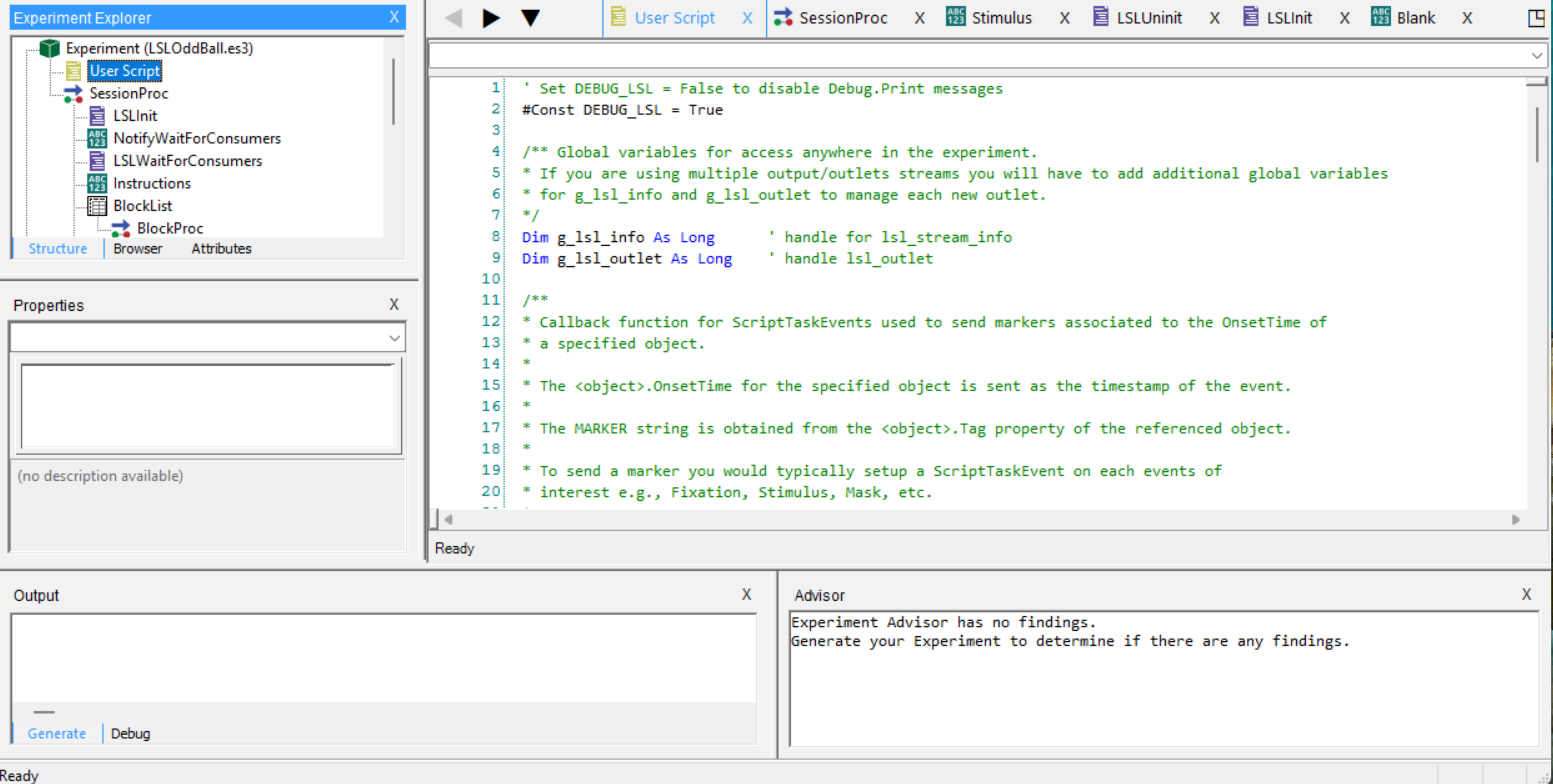
Once we have all this, E-Prime is ready to send LSL markers to NIC2.
3. Different functions of E-Prime.
To send LSL markers during your experiment, E-Prime offers three different functions, each sending a specific type of marker:
LSLSendOnsetMarker: Sends a marker at stimulus onset.
LSLSendStimulusRTTimeMarker: Sends a marker that includes reaction time.
LSLSendTimestampMarker: Sends a custom timestamp marker.
You can choose which function to use depending on the type of information you want to transmit.
To assign one of these functions to a stimulus:
Open the Stimulus object in your experiment structure (double click).
Click on the Properties icon (highlighted with a red circle).
In the Properties Pop-up window, go to the Task Events tab.
Add a new event and select the desired LSL function (e.g., LSLSendOnsetMarker) as the action.
Then on the Options, selectt the 3 dots and select a Script, then the Action (LSLSendOnsetMarker)
Configure the appropriate timing (e.g., OnsetTime) and argument (e.g., marker label) for the function.
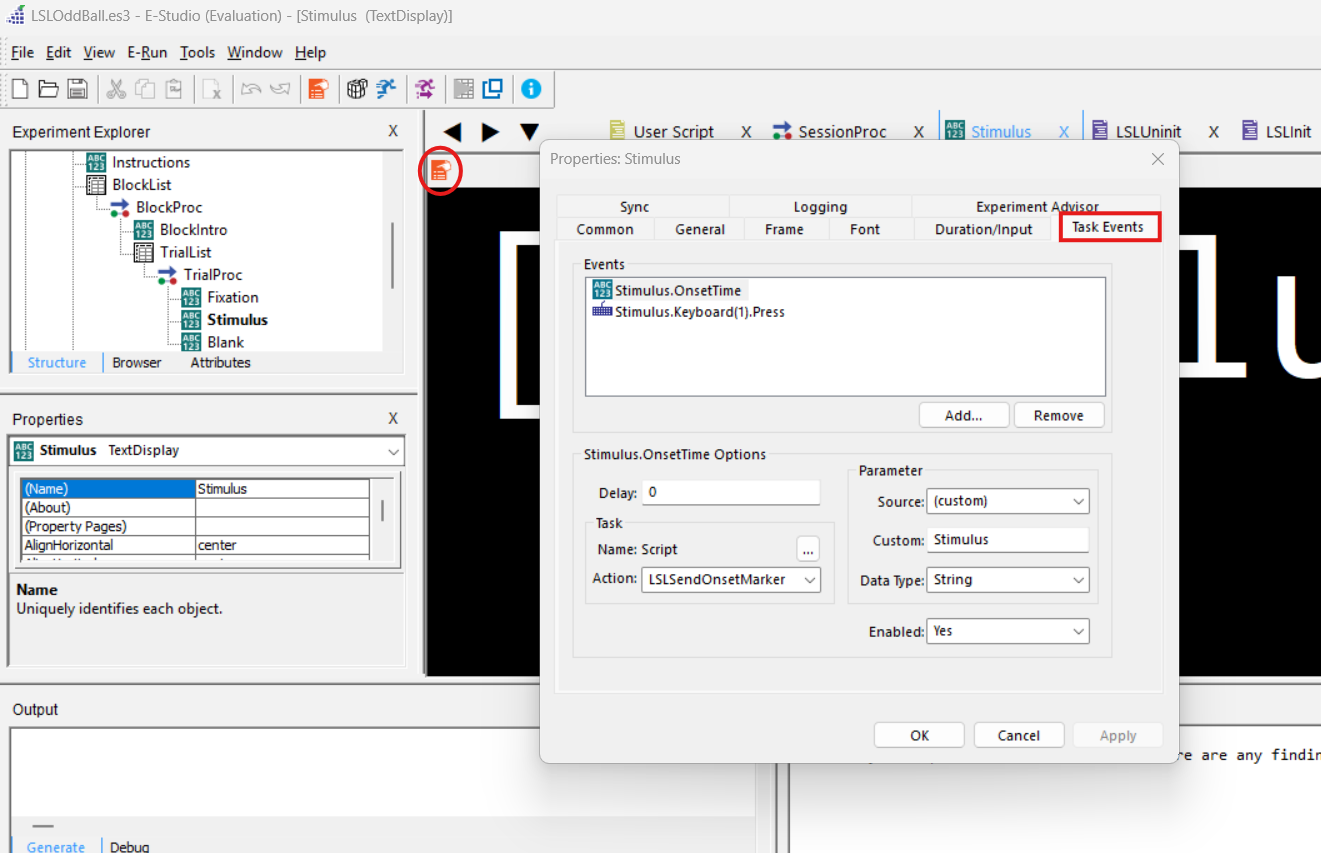
And in Action we can select the function that we want to use.
Which is the difference between all the functions?
LSLSendOnsetMarker:
This one sends a marker at the onset time of an object (image displayed, stimulus, etc).
The information that is sent is the object’s .Tag.
This one is useful to mark the exact moment a visual stimulus is shown.
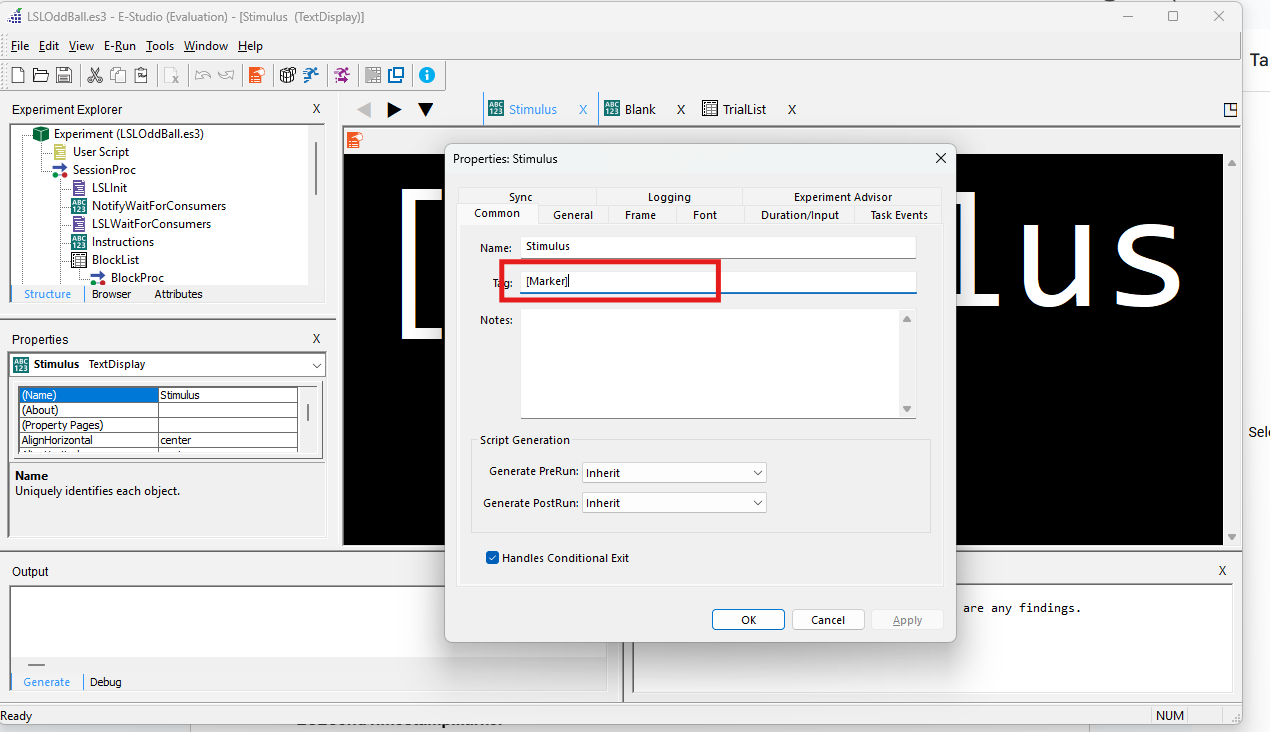
We can see in the picture how in the tag is written “[Marker]”, this tag is related to the TrialList that you can see in the next picture. If its not already created, right click, add property and add
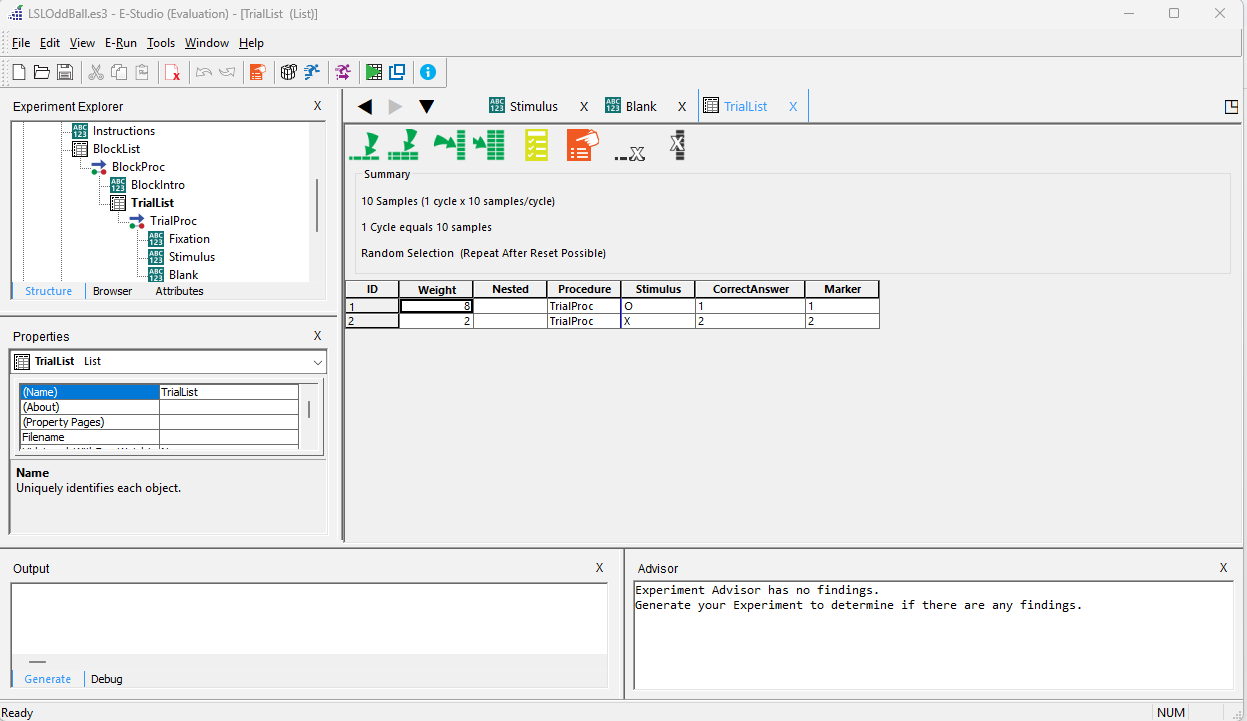
As you can see, when the stimulus is an "O", E-Prime sends a marker value of 1 to NIC2, and when the stimulus is an "X", it sends a value of 2. This is because these numbers correspond to the values specified in the "Marker" column of the table.
LSLSendStimulusRTTimeMarker
It sends a marker at the response time during a stimulus event. The timestamp that it uses is the reaction time (RTTime).
Also uses the object’s .Tag.
This one is useful for tracking when a participant actually responded (e.g. pressed a key) rather than when the stimulus appeared.
LSLSendTimestampMarker
It sends a marker with a custom timestamp based on the current time.
The timestamp that E-Prime sends is the current value from the E-Prime clock.
The marker can be any string or attribute in the custom field.
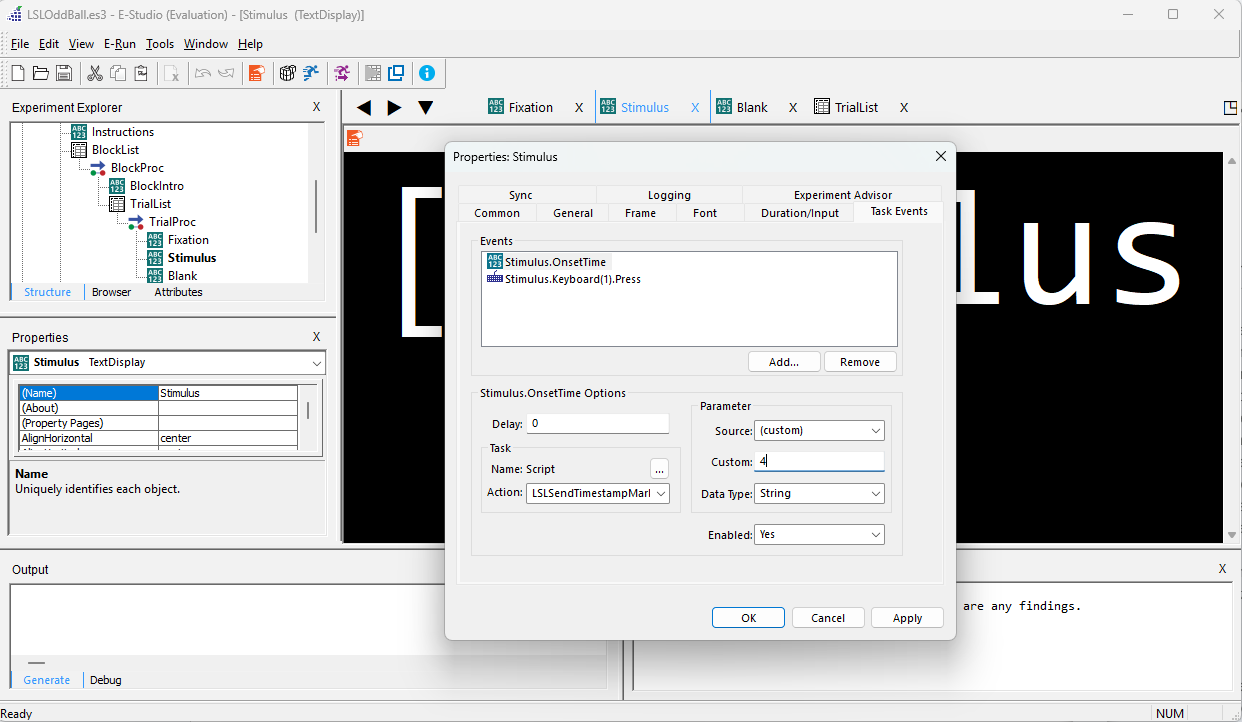
As you can see, the message that E-Prime sends corresponds to the value entered in the Custom field—in this case, the number 4. It’s important to enter a numeric value in this field, as NIC2 can only interpret numerical markers.
It is the most flexible use for logging custom events, for debugging, etc.
Summary table:
4. Configuration NIC2
To configure NIC2 and establish a connection between NIC and E-Prime, open the LSLinit script. On line 16 of the code, you will find the creation of the LSL label (highlighted in the red square in the image below). This name must exactly match the one you enter in the Markers Lab in NIC2.

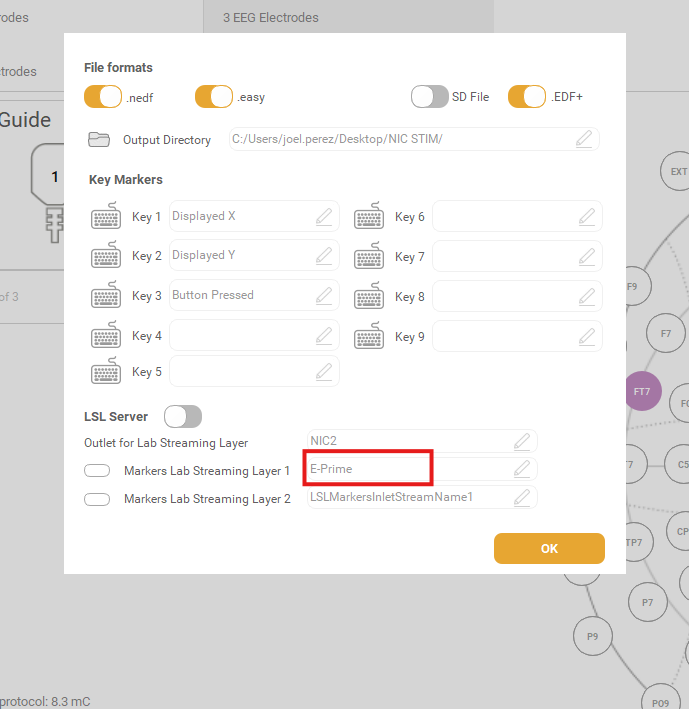
After this step, when you start the E-Prime protocol, you will see the Markers Lab Streaming indicator is in orange.

And when the E-Prime starts to send markers you will see it in green.

And at the final, you can see the markers in your LiveShowPanel like the following image.
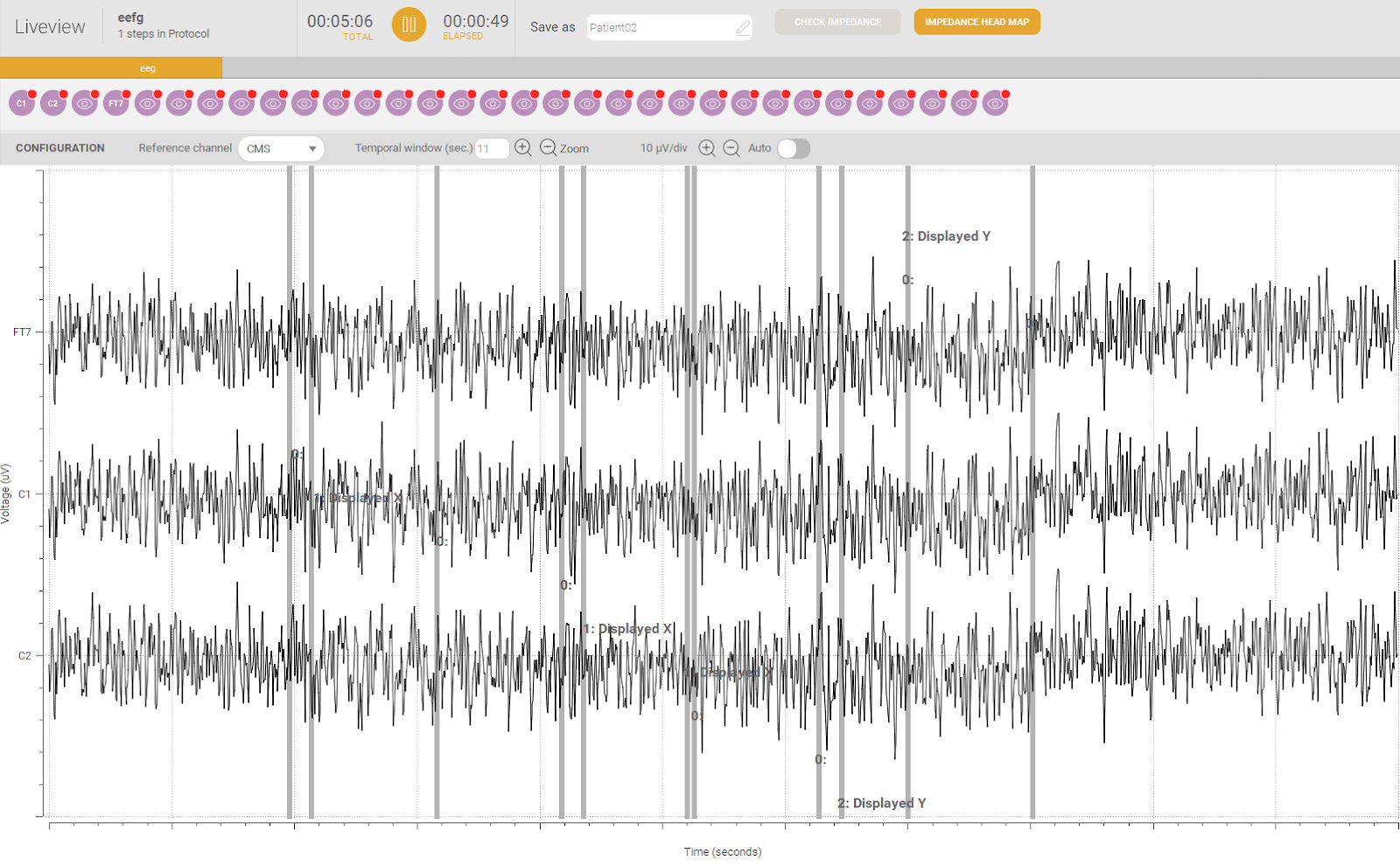
Was this article helpful?
That’s Great!
Thank you for your feedback
Sorry! We couldn't be helpful
Thank you for your feedback
Feedback sent
We appreciate your effort and will try to fix the article