This guide provides step-by-step instructions for meeting participants to enable live translated audio (Speech Translation) and translated captions directly inside Google Meet.
Method 1: Live Speech Translation (Translated Voice Audio)
Use this method to hear other meeting participants translated into your preferred spoken language in real-time.
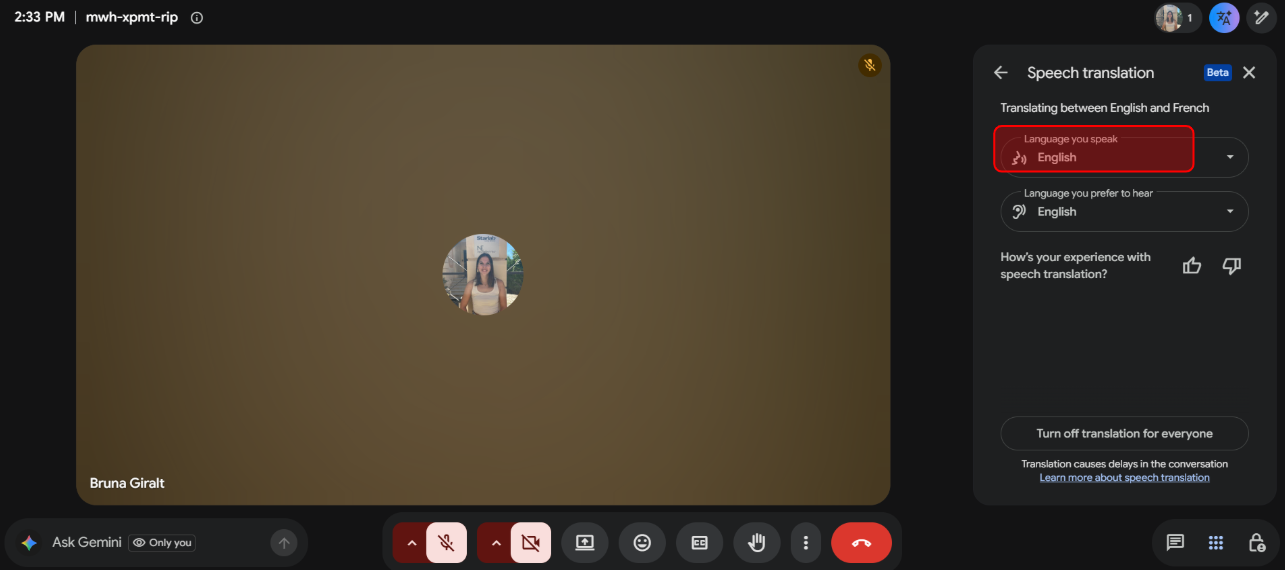
1. Open Meeting Tools: During an active call, click the Meeting Tools button on the right bottom action bar, navigate to Tools, and select Speech translation.
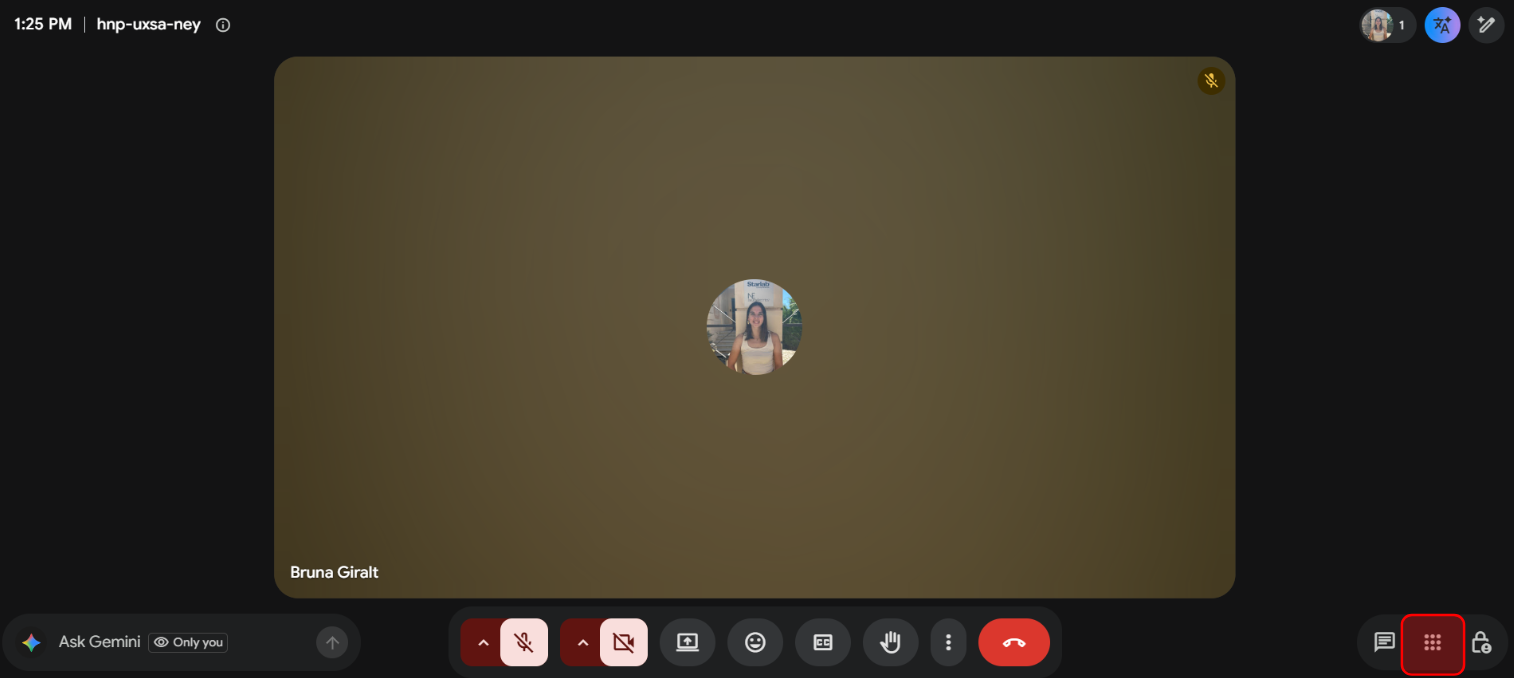
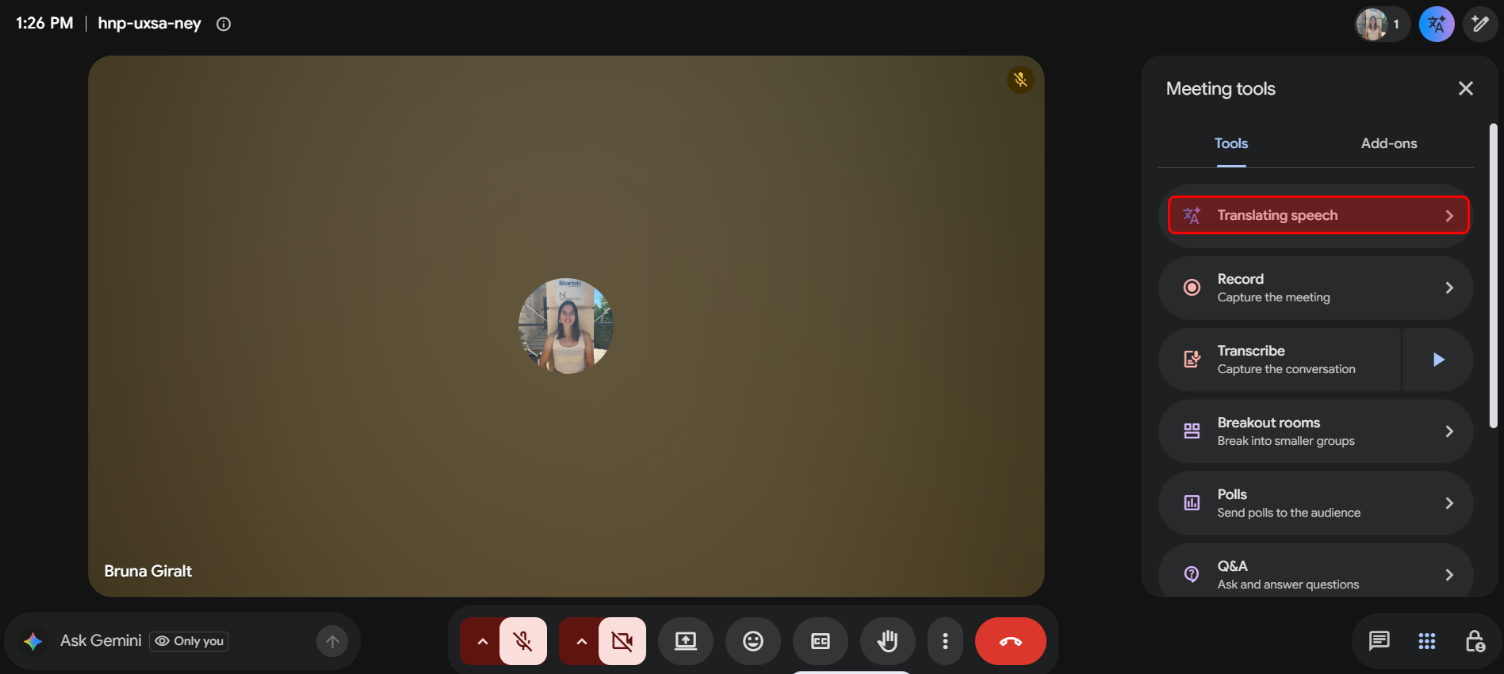
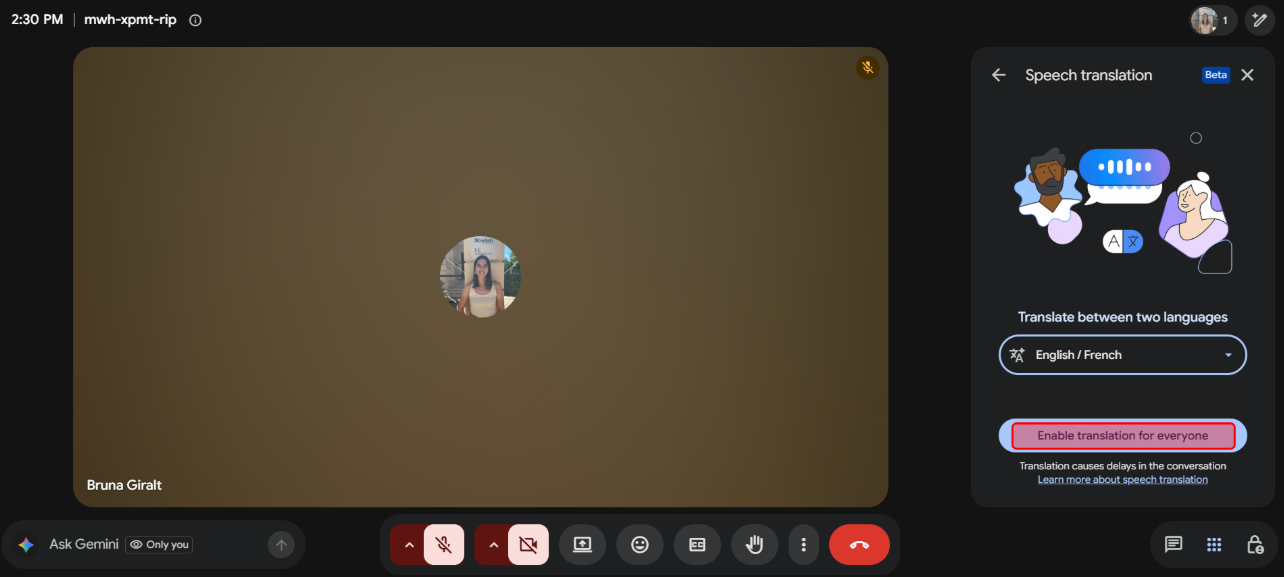
2. Enable Meeting Pair: Select the primary language pair for the call (for example, English / French) and click Enable translation for everyone.
3. Confirm Language Settings: Click the Speech Translation Badge appearing in the corner of your video tile or bottom control bar.
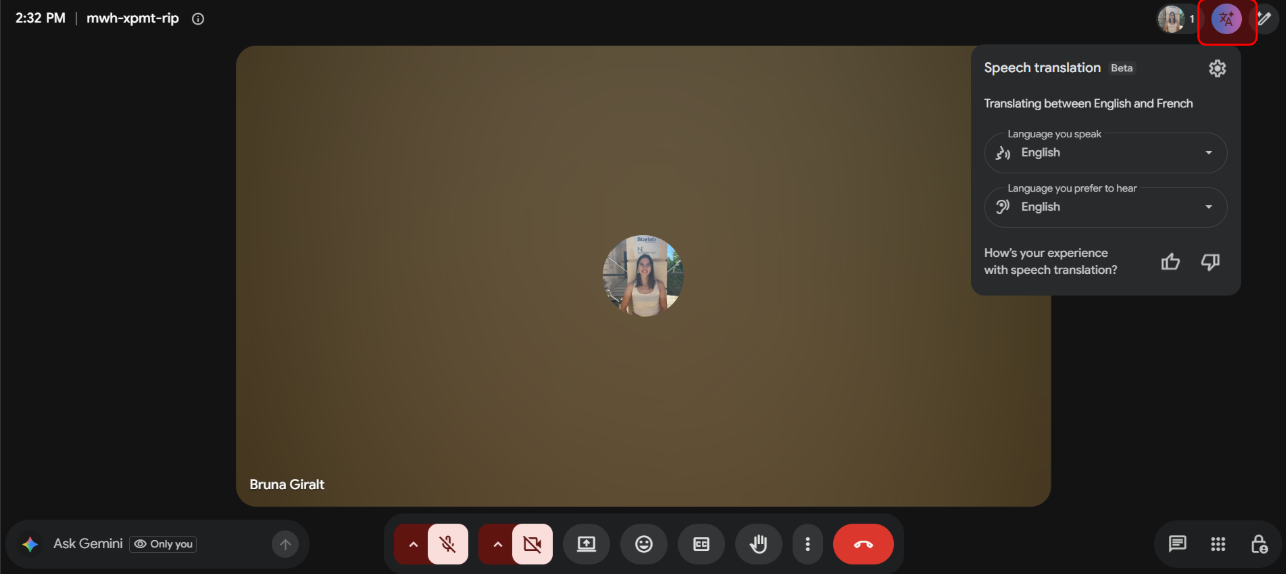
4. Allow Audio Processing: Under "Language you speak", ensure your native language is selected and click Allow translation so Google Meet can synthesize your voice into the target language for other attendees.
Method 2: Live Translated Captions (On-Screen Subtitles)
Use this method if you prefer to read real-time translated subtitles on your screen while listening to the original audio.
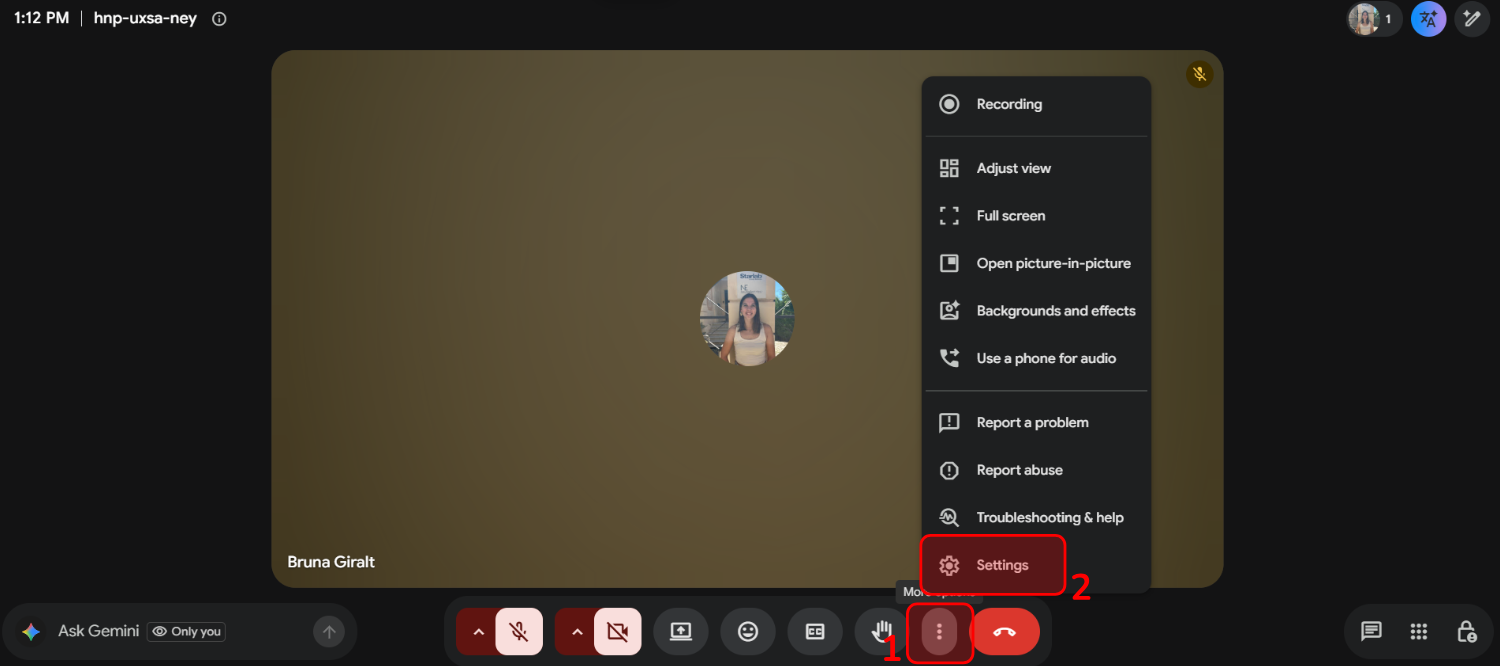
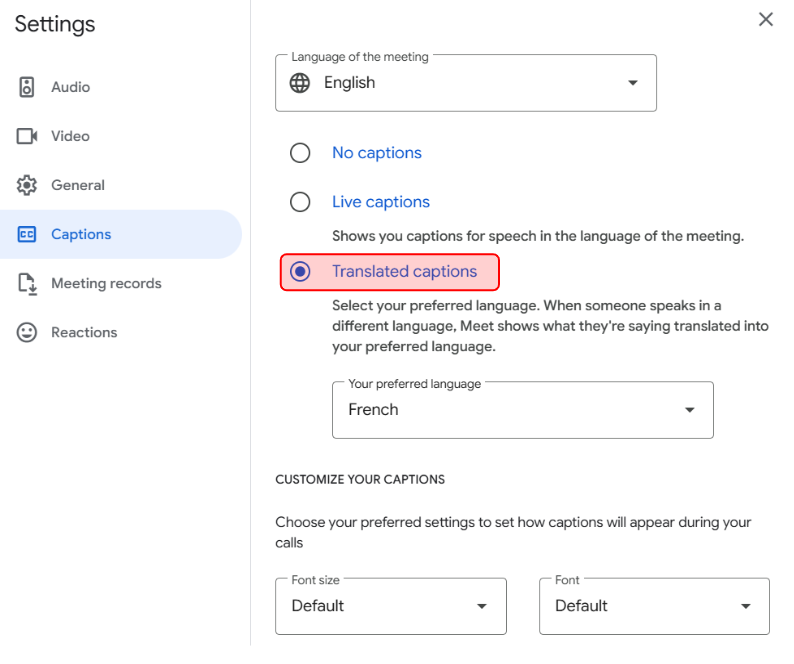
1. Open Settings: Click More options (three vertical dots ⋮) at the bottom of the Google Meet screen and select Settings.
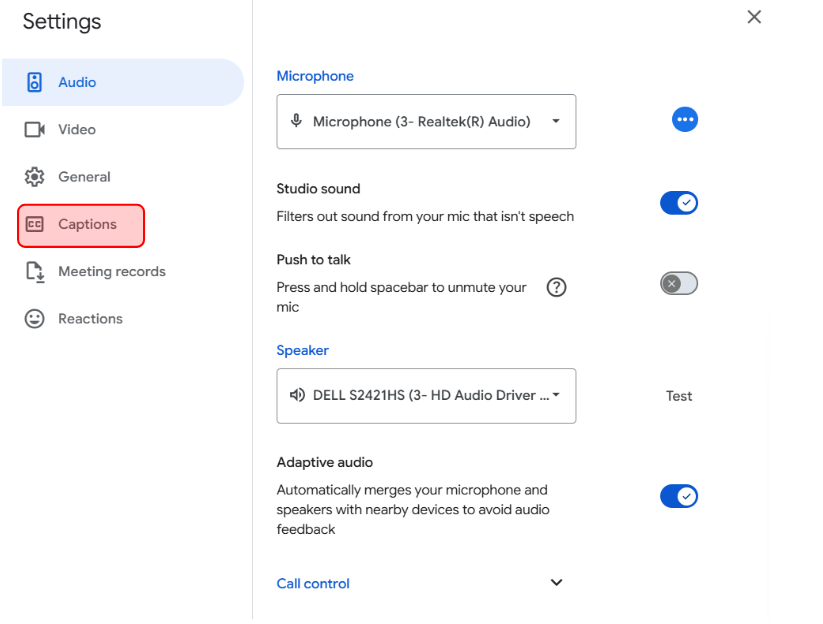
2. Navigate to Captions: From the left menu panel, click Captions
3. Set Meeting Language: Set the "Language of the meeting" to match the speaker's language.
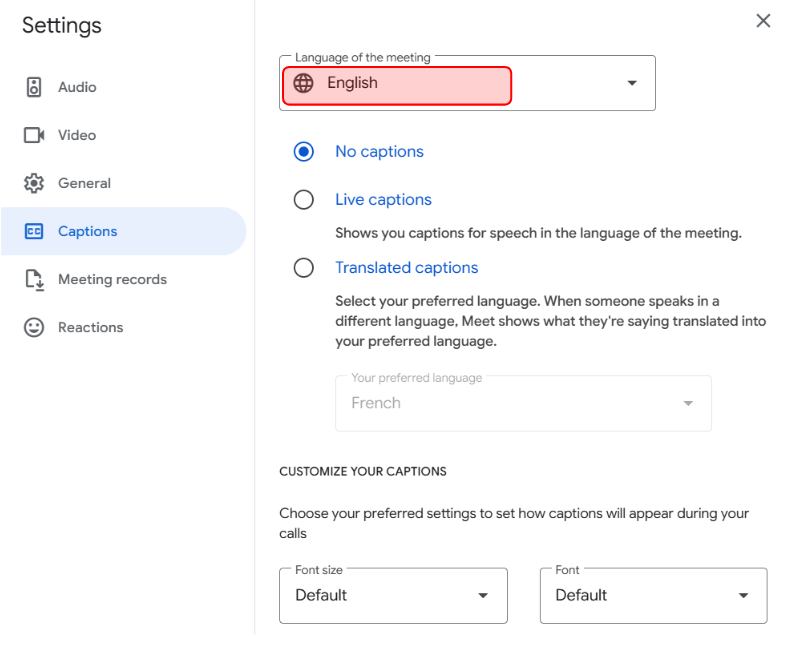
4. Turn On Translation: Toggle on Translated captions and choose your target reading language from the dropdown menu.
For further information:
Was this article helpful?
That’s Great!
Thank you for your feedback
Sorry! We couldn't be helpful
Thank you for your feedback
Feedback sent
We appreciate your effort and will try to fix the article