This article explains how to import a Neuroelectrics NIC-exported EDF+ file into Neuroguide and correctly configure the reference channels for analysis.
Materials / Devices / Software
Enobio 20, Enobio 32, Starstim 20, or Starstim 32
A computer with NIC installed
Neuroguide software with its Collection Module
Pre-requisites
Neuroguide and its Collection Module installed on the analysis computer.
An EEG session recorded in NIC and exported as an EDF file.
If you want to use a Linked Ears reference, a physical channel must be added on the left ear before recording (in this example, EXT).
Background
NIC's output file contains the voltage of each electrode measured against the Reference (CMS), placed on the right ear, this corresponds to A2. If you want to use Linked Ears, you need a physical channel on the left ear, which can be the EXT channel; this will correspond to A1.
Step-by-step guide
1. Open the EDF file in Neuroguide
In Neuroguide, go to File → Open → EDF, and select your exported file.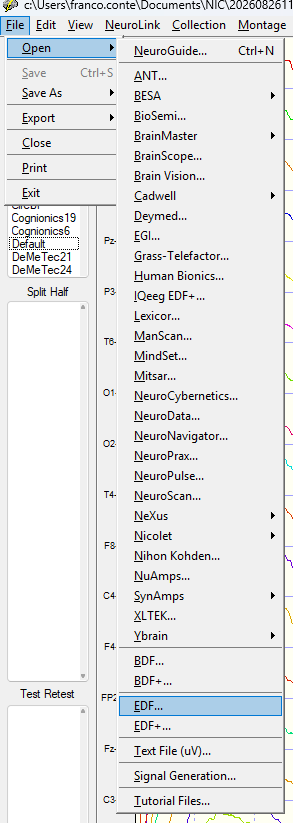
2. Set the Collection Hardware
Set Collection Hardware to Enobio.
3. Set the Collection Reference
Set Collection Reference to A2.
4. Set the left-ear reference
Set the reference on the left ear as A1.
In this example, the left-ear physical channel is EXT.
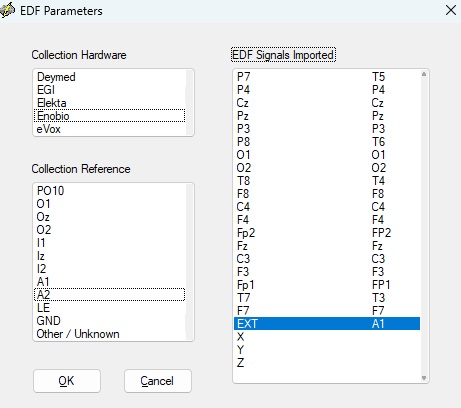
5. Confirm the settings
Press OK.
6. Verify the import
Once loaded, Neuroguide should display the recording with electrode voltages referenced to A2 (right ear) 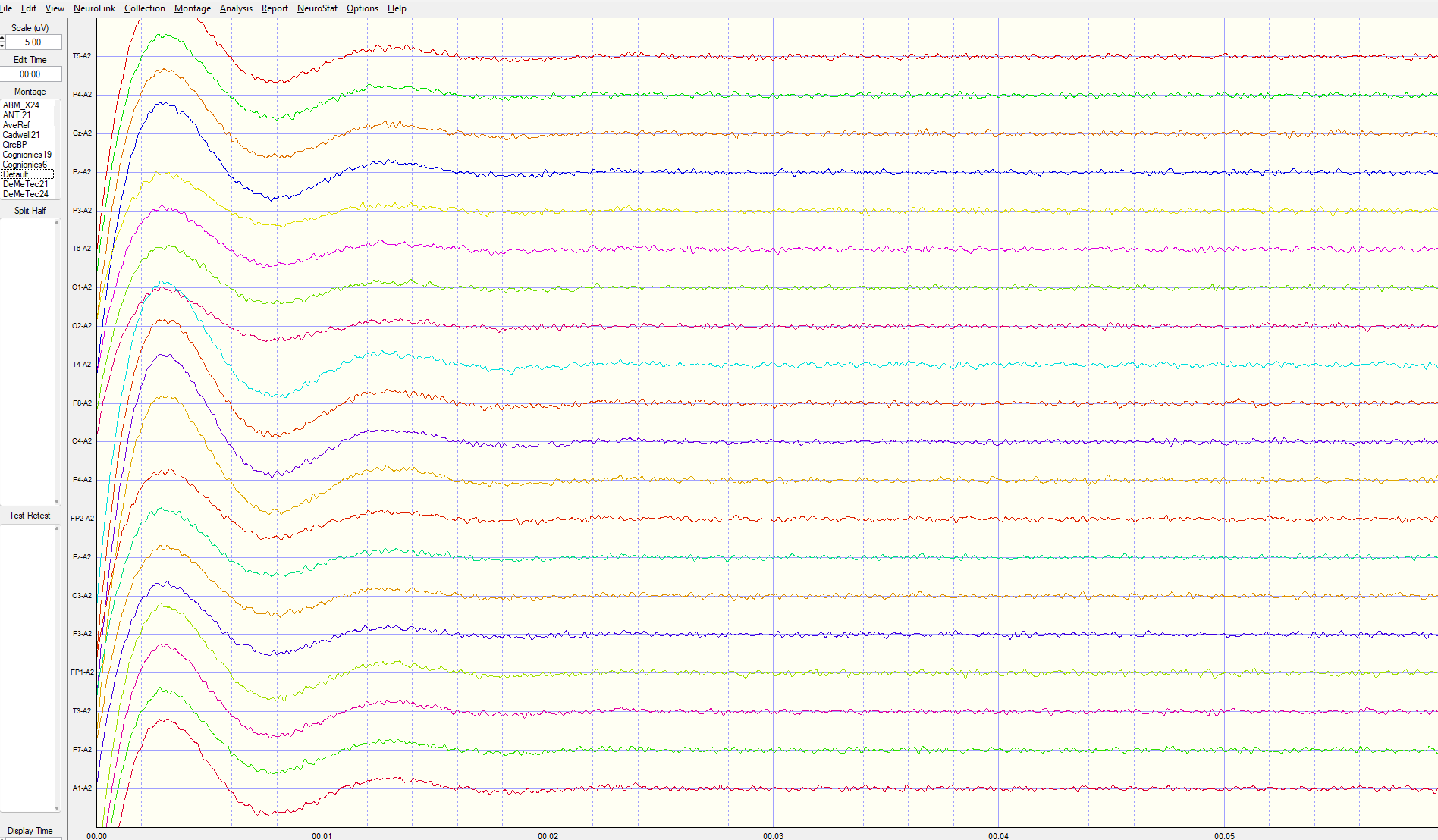
Was this article helpful?
That’s Great!
Thank you for your feedback
Sorry! We couldn't be helpful
Thank you for your feedback
Feedback sent
We appreciate your effort and will try to fix the article